
What You Need to Know About Claude Code - 2026
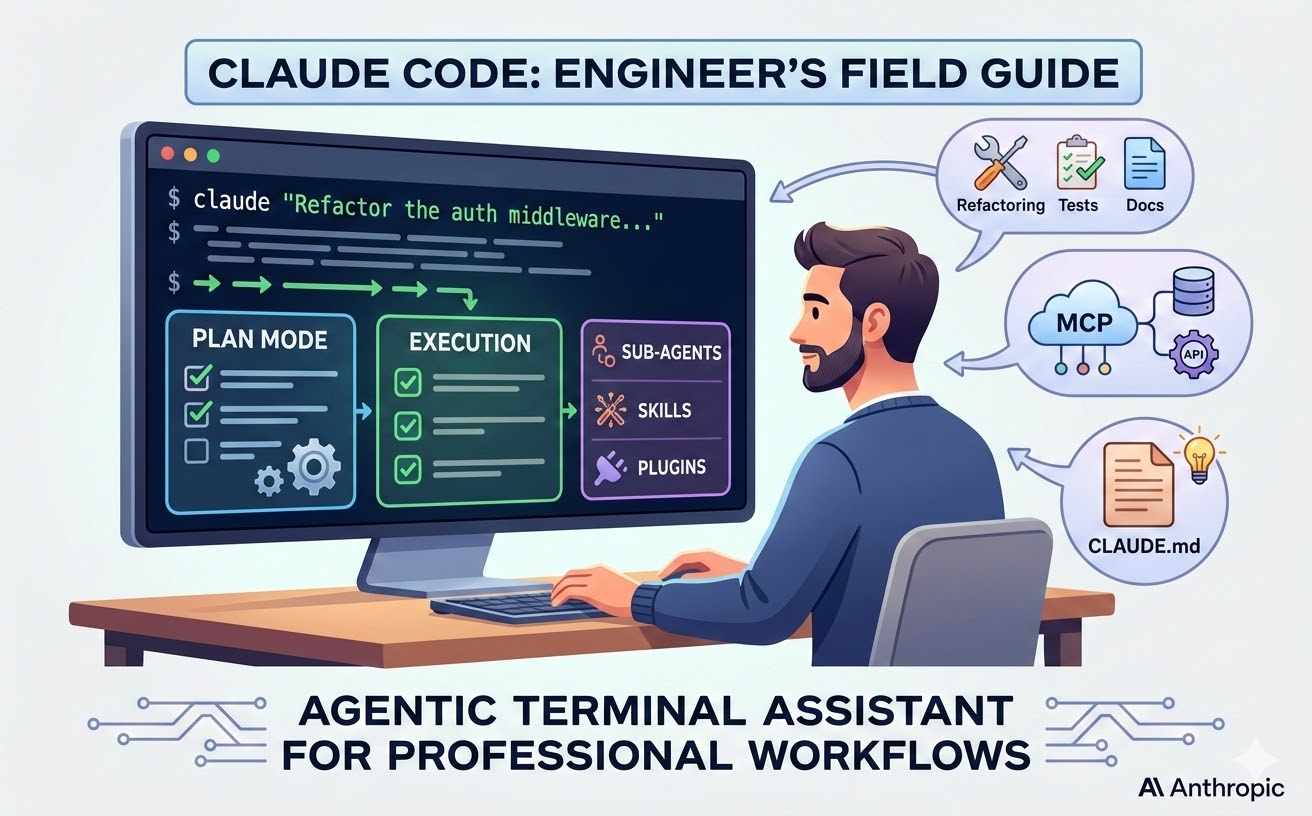
Every few years, something comes along that genuinely changes how engineers work. Not in the hype-cycle, “10x productivity” way that every VC-backed startup promises — but in the quiet, practical way where you find yourself doing things you simply couldn’t do before. Claude Code is one of those things.
This isn’t a review of Claude Code’s features. This is a field guide for engineers who want to understand what they’re actually dealing with: its mental model, its real strengths, its rough edges, and how to fit it into a professional workflow without turning your codebase into a haunted house.
What Is Claude Code, Really?
Claude Code is Anthropic’s agentic coding tool that runs directly in your terminal. Unlike IDE plugins that offer inline suggestions, Claude Code operates at the level of your entire project — it reads files, writes code, runs commands, edits configs, and can chain these actions together to complete multi-step engineering tasks autonomously.
Think of it less like autocomplete and more like an extremely capable colleague who has read your whole repo and is ready to get to work — one who never gets tired but occasionally needs a second opinion.
It’s a Node.js CLI tool requiring Node 18+:
# Install globally via npm
npm install -g @anthropic-ai/claude-code

# Navigate to your project and start a session
cd my-project
claude

# Or kick off a task directly from the shell
claude "Refactor the auth middleware to use JWT instead of sessions"
Official docs: docs.claude.com/en/docs/claude-code/overview
The Mental Model That Makes It Click
Most developers initially reach for Claude Code like a smarter tab-complete. That’s understandable — but it misses the point. The mental model that unlocks Claude Code’s real power is this:
“You are the architect. Claude Code is the implementation contractor. Your job is to specify intent with precision. Its job is to execute without you babysitting every line.”
This means your most valuable skill when working with Claude Code isn’t prompting tricks — it’s knowing how to decompose a problem clearly, define acceptance criteria, and recognize when the output is good enough versus when it needs a course correction.
Where Claude Code Actually Shines
This is where most overviews stop at “generates code and writes tests.” Claude Code has evolved into a full extensibility platform. Here’s the real picture:
Core Productivity Tasks
The table-stakes stuff that works reliably well out of the box:
- Refactoring at scale — rename patterns, migrate APIs, or restructure modules across dozens of files while preserving logic
- Test generation — unit and integration tests from existing source code, often covering edge cases you’d have missed
- Boilerplate & scaffolding — CRUD endpoints, DB models, or new service files consistent with your existing conventions
- Bug triage — describe a symptom, and Claude Code traces through the call stack and proposes a fix with context
- Dependency upgrades — update a library and have breaking changes flagged and resolved automatically
- Docs & comments — JSDoc, README sections, or inline comments that actually reflect what the code does
Sub-Agents: Parallel Work and Context Management
This is Claude Code’s most underappreciated feature. Claude can spawn sub-agents — isolated instances that run tasks in their own context window and report back to the main session.
Why does this matter? Two reasons:
Context window management. Your main session has a 200K token limit, and it degrades as it fills. Offloading a task like “search the codebase for all usages of the deprecated API” to a sub-agent keeps your main window clean. The sub-agent does the searching, then surfaces a concise summary.
Parallelism. Claude can spawn multiple sub-agents simultaneously. Ask it to research 10 competitor features and it’ll fan out 10 agents working in parallel, each with its own context.
There are three built-in sub-agent types you’ll encounter automatically:
Explore— a fast, Haiku-powered agent that maps your codebase during planning. Invoked automatically in Plan Mode.Task— a general-purpose worker you’ll see Claude spawn for isolated sub-tasks.Plan— coordinates the planning phase before execution.
You can also define custom sub-agents in Markdown files with YAML frontmatter, saved to ~/.claude/agents/ (user-level) or .claude/agents/ (project-level):
---
name: code-reviewer
description: Reviews code for quality and best practices
tools: Read, Glob, Grep
model: sonnet
---
You are a code reviewer. Focus on readability, performance, and adherence
to the project's CLAUDE.md conventions.
Invoke them with @agent-name or through the Task tool. You can also invoke them via slash commands (see below).
Reference: code.claude.com/docs/en/sub-agents
Skills: Auto-Invoked Domain Knowledge
Skills are structured, auto-discovered knowledge packages that Claude loads when it detects relevance — you don’t have to invoke them explicitly.
A skill lives in a folder with a SKILL.md file (plus optional supporting scripts or templates). When Claude receives a task, it scans available skill descriptions and loads the ones that match. This means you can encode your team’s best practices as skills — and Claude will apply them automatically, without anyone needing to remember to ask.
Use skills when you want Claude to auto-apply richer, supporting-file-backed workflows (think design systems, migration patterns, security checklists). Use CLAUDE.md for short, always-true project conventions.
Slash Commands: Repeatable Workflow Shortcuts
Slash commands are user-triggered shortcuts saved as Markdown files in .claude/commands/ (project) or ~/.claude/commands/ (global). Type / in a session to get autocomplete.
# .claude/commands/pr-review.md
Review the current git diff for:
1. Logic errors or edge cases
2. Missing error handling
3. Inconsistencies with conventions in CLAUDE.md
Output a structured review with severity levels.
The power move: commands can orchestrate other behavior — invoking a specific sub-agent for planning, loading a skill, or chaining a research → scan → implement pipeline. This hybrid approach gives you structured, repeatable workflows without losing Claude’s full tool access.
A good rule of thumb: keep your slash commands short and focused. If you’re writing paragraphs in a command file, that’s a sign it should be a skill or a sub-agent instead.
Plugins: Bundled, Shareable Packages
Plugins are distributable bundles of skills, sub-agents, slash commands, hooks, and MCP servers packaged as a single installable unit. Install a plugin and all its components merge seamlessly into your setup — hooks combine, commands appear in autocomplete, skills activate automatically.
They’re the right abstraction for sharing domain-specific tooling across projects or teams. A python-development plugin might bundle 3 Python-specialized agents, a scaffolding command, and 16 skills — all namespaced to avoid conflicts.
The community ecosystem around plugins is growing fast. See awesome-claude-code on GitHub for a curated list.
Context Is Everything: CLAUDE.md
Claude Code’s quality output is directly correlated to how much relevant context it has. The secret weapon is the CLAUDE.md file at your project root — a standing briefing document that’s loaded into every session.
# CLAUDE.md — Project: Helios API

## Stack
Node.js 20, TypeScript, Express, Prisma ORM, PostgreSQL.
All endpoints return `{ data, error, meta }` envelopes.

## Conventions
- Services go in `/src/services`, one file per domain.
- Zod is used for ALL input validation. Never trust raw req.body.
- Errors are thrown as AppError instances, never raw Errors.
- No `console.log` — use the logger from `@/lib/logger`.

## Do NOT
- Modify migration files directly. Always generate with Prisma.
- Install new dependencies without flagging them for review.
A few hard-won tips:
- Don’t
@-mention doc files in CLAUDE.md — it embeds the entire file on every run and bloats the context. Instead, pitch Claude on when to read them: “For complex FooBarError handling, seepath/to/docs.md.” - Avoid negative-only constraints like “Never use
--foo-bar.” Always pair a constraint with an alternative. - For monorepos, maintain a root
CLAUDE.mdfor global conventions and per-packageCLAUDE.mdfiles for local context.
Reference: code.claude.com/docs/en/memory
Agentic Mode and Plan Mode
Agentic Execution
In agentic mode, Claude plans and executes a sequence of actions autonomously: reading files, writing code, running tests, fixing failures, and iterating until a goal is met. A few practices that save headaches:
Commit before you start. Agentic runs can touch many files. Give yourself a clean checkpoint:
git add -A && git commit -m "chore: checkpoint before Claude Code refactor"
claude "Migrate all fetch() calls in /src/api to use the new apiClient wrapper"
git diff --stat
Scope your tasks. “Improve the codebase” produces noise. “Add rate-limiting middleware to all authenticated routes using the existing RateLimiter class in /src/lib/rate-limiter.ts” produces signal.
Always audit before merging. Claude Code doesn’t have production context — run your test suite and review changes as you would any PR.
Plan Mode: Think Before You Build
Plan Mode is one of the most valuable — and underused — features in Claude Code. Activate it by pressing Shift+Tab twice (or typing /plan since v2.1.0). You’ll see ⏸ plan mode on at the bottom of your terminal.
In Plan Mode, Claude can read everything — files, directories, grep results, web — but it cannot modify anything. No file edits, no terminal commands, no surprises. Instead, it produces a structured implementation plan for your review.
The workflow that even Claude Code’s creator uses:
- Enter Plan Mode
- Describe the feature or task
- Iterate on the plan until it’s right (edit directly with
Ctrl+G) - Exit Plan Mode (Shift+Tab) and let Claude execute
This mirrors spec-driven development: architecture decisions made thoughtfully upfront result in cleaner code than reactive fixes. It also surfaces hidden complexity early — what looks like a “quick fix” often touches 8 files once Claude maps the dependencies.
The three permission modes in Claude Code:
| Shortcut | Mode | Behavior |
|---|---|---|
| Default | Edit Mode | Claude asks permission before each change |
| Shift+Tab × 1 | Auto-Accept Mode | Claude makes changes without asking |
| Shift+Tab × 2 | Plan Mode | Read-only; no changes until you approve |
For large codebases, consider Opus in Plan Mode: select option 4 in the /model command to use Opus for planning and Sonnet for execution. Opus’s 1M context window handles codebases that would overflow a standard session.
Reference: code.claude.com/docs/en/common-workflows
MCP: Connecting Claude Code to the Outside World
Model Context Protocol (MCP) lets Claude Code connect to external tools and services: databases, GitHub, Slack, browser automation, internal APIs, and more. It transforms Claude Code from a file-editor into a full-stack development assistant with live context.
Popular MCP servers for engineering workflows:
- GitHub — PR management, issue reference during bug fixes, triggering CI/CD
- Playwright — browser automation and end-to-end testing
- PostgreSQL / Supabase — write and validate queries against your actual schema
- Sentry — pull production errors directly into your debug session
- Context7 — real-time, version-specific library documentation
Adding MCP Servers
The CLI is the quickest way to get started:
# Add the GitHub MCP server (HTTP transport)
claude mcp add --transport http github https://api.githubcopilot.com/mcp/

# Add a local stdio server via npx
claude mcp add playwright npx @playwright/mcp@latest

# List all configured servers
claude mcp list

# Check live server status inside a session
/mcp
Configuration Files and Scopes
MCP config lives in a few places depending on scope:
| Scope | File | Use case |
|---|---|---|
| User (all projects) | ~/.claude.json |
Personal tooling you want everywhere |
| Project (shared) | .mcp.json (project root) |
Team-shared servers, commit to version control |
| Project (local) | .claude/settings.local.json |
Personal overrides, gitignored |
For team setups, the pattern is: commit a .mcp.json with shared servers (e.g. a Sentry server, a project database), then each developer adds their own credentials via the local config. Server names stay consistent, credentials stay private.
You can also edit ~/.claude.json directly if you prefer full visibility over the CLI wizard:
{
  "mcpServers": {
    "github": {
      "type": "http",
      "url": "https://api.githubcopilot.com/mcp/"
    },
    "postgres": {
      "type": "stdio",
      "command": "npx",
      "args": ["-y", "@modelcontextprotocol/server-postgres"],
      "env": {
        "POSTGRES_CONNECTION_STRING": "${DATABASE_URL}"
      }
    }
  }
}
Use ${VAR} syntax to reference environment variables — keeps API keys out of version control.
Reference: code.claude.com/docs/en/mcp
MCP server directory: mcp.so · smithery.ai
Common Pitfalls
Over-relying on it for architecture decisions. Claude Code is excellent at implementation. It’s a weaker advisor for decisions that require deep business context. Use it to build the thing you’ve already decided to build — not to decide what to build.
Letting it hallucinate dependencies. Claude Code can confidently import packages that don’t exist or use APIs from the wrong library version. Always run npm install and verify imports after generation. CI is your safety net.
Ignoring security implications. Generated code may skip security best practices unless you explicitly ask for them. Add security requirements to your CLAUDE.md and audit any auth-adjacent code carefully. SQL queries, input handling, and token management deserve extra human eyes.
Using it as a crutch for understanding. If Claude Code writes code you don’t understand, that’s a liability. Take the time to read it. The goal is to extend your capabilities, not replace your comprehension of your own system.
Internal Links
If you want to go deeper on how Claude Code actually works under the hood:
- How Claude Code’s Architecture Works (Part 1) — 5 Layers You Can Steal for AI Agents — the deep-dive series on the design patterns that power Claude Code
- What Is an Agent Harness? Why Your LLM Needs More Than an API Call — a 12-part engineering guide to building autonomous AI agent infrastructure
References
- Claude Code Overview — Official documentation
- Sub-Agents Guide — Custom sub-agents, skills in agents, memory
- Common Workflows — Plan Mode, agentic workflows
- MCP Configuration — Connecting external tools and services
- Memory & CLAUDE.md — Context management
- Awesome Claude Code — Community skills, plugins, slash commands
- Understanding Claude Code’s Full Stack — MCP, Skills, Subagents, Hooks explained
- Plan Mode Deep Dive — Practical workflows with Plan Mode
- Claude Code MCP Servers — Configuration guide from Builder.io
Have thoughts on this?
I read every email. If something resonated, felt wrong, or made you think — I'd love to hear from you.


Comments